
Gravity Forms SharePoint Integration Made Easy

Files often slip through the cracks. Handling Gravity Form entries manually takes time, and mistakes happen. Lost or duplicated attachments slow work down and frustrate teams.
Connecting Gravity Forms to Microsoft SharePoint is the perfect fix. Everything will stay in one place, since files arrive automatically in the correct folder. The metadata makes searching easy. As a result, all teams can trust the system and focus on meaningful work.
Why Is Gravity Forms SharePoint Integration Important?
It’s frustrating to see files disappear or get duplicated. And to fix that, the manual processes needed will drain time and energy from the team. Even small mistakes can slow approvals or cause confusion.
Linking Gravity Forms to SharePoint will remove that friction. Submissions arrive correctly every time. Metadata is recorded alongside each file. Teams can trust that everything is secure, organised, and ready for use when needed.
How A SharePoint Integration Works
The setup is simple once it’s in place. When a Gravity Form is submitted on your WordPress site, the plugin captures it, and everything, including files, lands in SharePoint.
Multi-file uploads, PDFs from Gravity PDF, and metadata all go the same way.
On top of that, the permissions, folder structure, and field mappings are handled by the plugin, so submissions arrive complete and searchable. The flow is invisible but effective, keeping your team’s work organised automatically.
Gravity Forms SharePoint Integration Setup: Step By Step
After it’s set up, you won’t need to watch your upload- you can tweak the system to be confusion-proof.
- Install the Plugin: Add it to WordPress and activate it. It’ll show in your usual plugins list if all goes right.
- Authenticate SharePoint / Office 365 Account: The plugin keeps your login safe and secure, without using up extra space on your server. Authentication is managed through Microsoft Entra.
- Pick the Target Folder or List: Choose the folder path. You can have multiple forms going to different folders if your workflow calls for it.
- Map Form Fields to SharePoint Columns: Connect your form fields to the right metadata spots in SharePoint. That way, all the info stays organised and searchable.
- Test the Integration: Run a few test submissions. Check that the files and data land correctly, then adjust the folder path, rules or field mappings as needed.
Once it’s running, you can tweak mappings, add more forms, or adjust folders without touching your existing forms. The setup is flexible and quiet.
What’s The Best SharePoint Plugin?
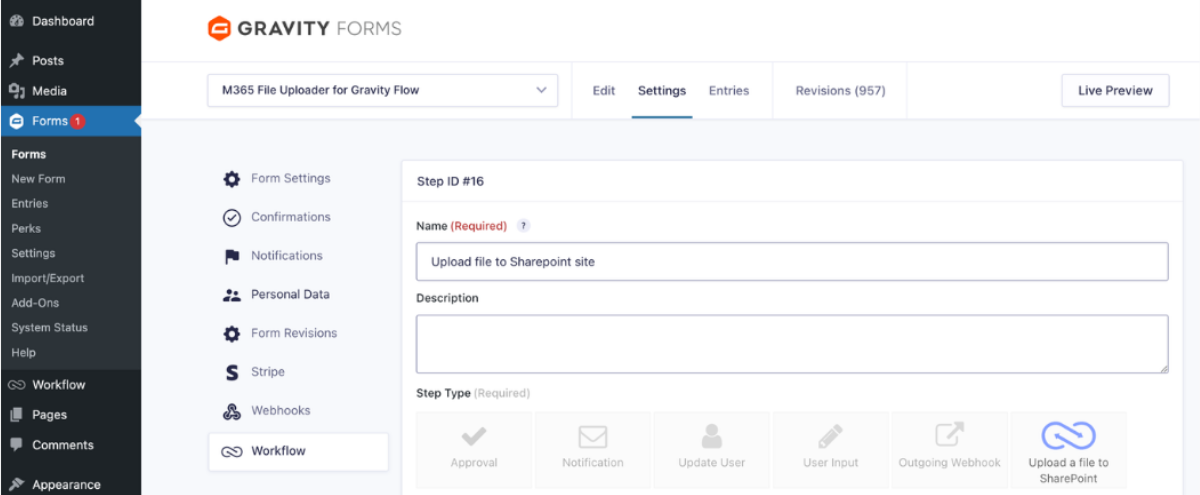
If you’ve got Gravity Forms and Gravity Flow, you might want to try the SharePoint File Uploader for Gravity Flow.
Features and Advantages of SharePoint File Uploader
The plugin does more than move files. It keeps submissions neat and searchable while taking most of the busy work off your plate. Teams don’t have to dig through folders or worry about lost form entries, and your WordPress storage will also stay clean.
- Files are uploaded to SharePoint automatically during form submission.
- Form fields map to SharePoint text or number columns for easy organisation.
- No coding is required to set up or use the plugin.
- Conditional logic lets you upload only the files you need.
- Files are stored securely in the SharePoint library, keeping WordPress storage light.
- Generated PDFs from Gravity PDF can also be uploaded automatically.
- Works with multiple forms and folders, with mappings adjustable anytime.
Even in busy workflows, everything lands where it should, and the plugin handles things that normally take a few extra steps.
Common Use Cases For SharePoint Integrations
A good Gravity Forms SharePoint integration will keep submissions in SharePoint with the right metadata attached. It does more than sort files- it keeps them ready for the next step in your workflow.
- HR teams handling resumes, onboarding forms, and internal documents
- Clients sending contracts or project files
- Event registrations that include attachments or supporting docs
- Compliance or legal documents that need central storage
File content goes right into SharePoint folders, no need for downloading or re-uploading.
Troubleshooting SharePoint Integrations
Even when an integration mostly works, little issues can pop up. You can try these fixes if they do:
- Double-check field mappings so data ends up in the right column.
- Confirm necessary sizes and types for all file content are allowed.
- Make sure your SharePoint folders have permissions.
- Keep data secure, as well as compliant.
Comparing Gravity Form SharePoint Integration Options
Here’s a clear view of the main ways to get Gravity Forms data and files into SharePoint. We’ll show how each handles files, metadata, automation, and setup.
|
Feature |
SharePoint File Uploader for Gravity Flow Plugin |
||
|
Setup Complexity |
Medium |
Medium–High |
Low (Intuitive UI) |
|
Automation Speed |
Medium |
Medium–High |
High (Instant push to SharePoint) |
|
Direct File Handling |
Partial / Limited |
Partial / Limited |
Full (Attachments + PDFs via Gravity PDF) |
|
Metadata Support |
Limited |
Limited |
Yes (Text & Number columns for search & org) |
|
Conditional Uploads |
Limited |
Moderate |
Yes (Based on form inputs) |
|
WordPress Integration |
Partial / External |
Partial / External |
Full (Native plugin, works with Gravity Forms & Gravity Flow) |
|
Security / Compliance |
Moderate |
Moderate |
High |
|
Supported Environments |
Cloud only |
Cloud only |
WordPress 6.4+, Gravity Forms 2.8+, Gravity Flow, SharePoint Online |
|
Maintenance |
Requires ongoing monitoring |
Requires ongoing monitoring |
Minimal once setup, automatic file push |
Notes:
- Zapier and Power Automate can help move form data to SharePoint, though both have limits with file handling and WordPress-native integration. And they’re not specialized for SharePoint, so integration isn’t as smooth.
- The SharePoint File Uploader plugin handles attachments, PDFs, and metadata directly inside WordPress, with automation that doesn’t require extra monitoring.
- Conditional logic is especially important, as files will only go where you want them, and Gravity PDF integration will keep generated documents neatly stored in SharePoint.
Conclusion
Your team deserves less busy work, so let Gravity Forms push files straight into SharePoint folders while keeping everything neat and easy to reach.
It becomes much easier to manage, you can have conditional rules to set up dynamic fields, even for file uploads, and have tags to keep searches simple across form entries, so that everyone stays in sync.
Install our Gravity Forms SharePoint File Uploader, and everyone can focus on core tasks instead of managing uploads.