
Gravity Forms File Upload Location: Default And Custom
Gravity Forms uploads aren’t too hard to find. The system keeps uploads tidy, but folder paths can get a bit cryptic when it’s a busy WordPress site. By default, files are saved in /wp-content/uploads/gravity_forms/. This guide will show you where to look, how to change where files go, and how to send them somewhere else, both with and without using code.
Default Gravity Forms File Uploads Location
Gravity Forms keeps all uploaded files inside your WordPress site’s main uploads folder, here:
/wp-content/uploads/gravity_forms/{form_id}/{year}/{month}/
Each form gets its own folder, and inside that, uploads sort by year and month. This keeps things neat and easy to find when reviewing Gravity Forms entries or downloading submitted files.
You can view each file through the Form Entries page. Gravity Forms also adds a blank index.html file in every folder to keep snoopers out.
While this setup is simple, all files still live on your WordPress server. That means storage and safety rest on your hosting plan and its limits.
Use Entry Point
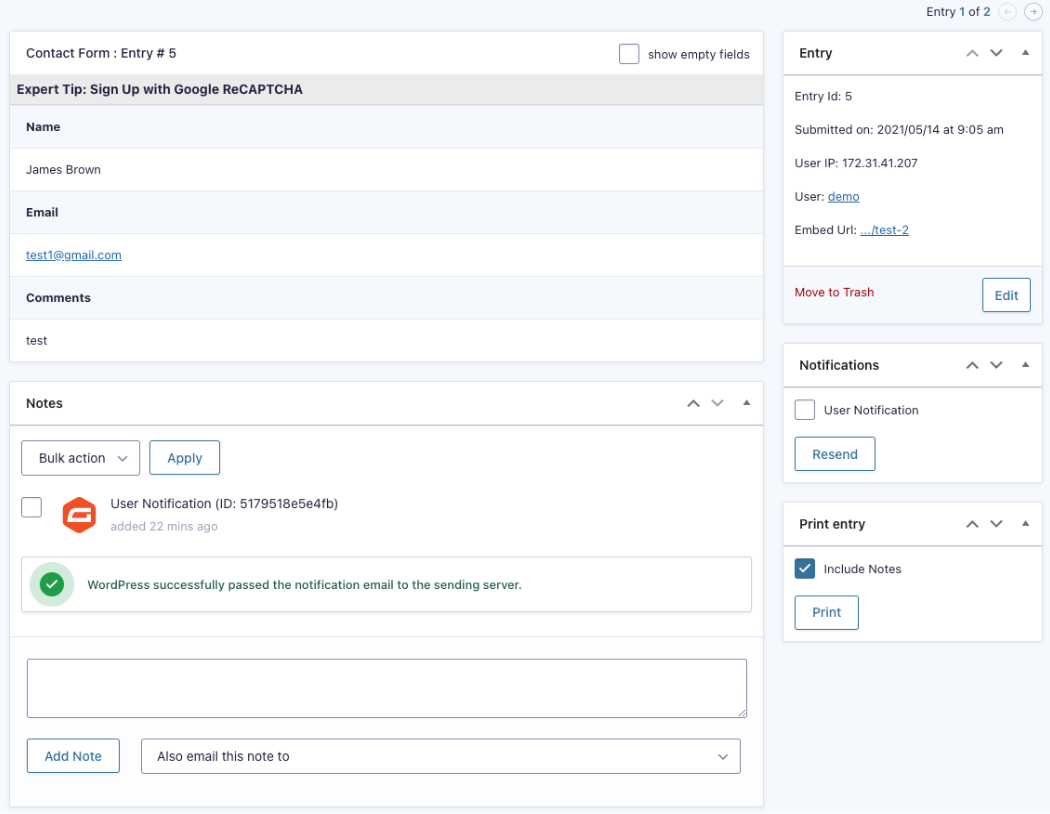
You don’t need to use only the Entry Detail page to manage your Gravity Forms entries. Try these options:
-
- File URL in Entry Data: Each file has a link. Click or copy it to view or download, or inspect the file content directly if needed.
- WordPress Media Library: Some files might show up in the Media Library. Just go to Media > Library to find them.
- Uploads Folder (via FTP or File Manager): Files are in /wp-content/uploads/gravity_forms/, sorted by form and date. Use FTP or your host’s file tool to get them.
- Plugin or Integration: With a storage plugin, you can get files from Drive, Microsoft SharePoint, Dropbox, or Amazon S3.
- File URL in Entry Data: Each file has a link. Click or copy it to view or download, or inspect the file content directly if needed.
Why You Might Want to Change the Upload Location
You might want to move your upload spot for reasons like:
- Space: Big files eat up the server room fast, and backups take longer.
- Safety: Some teams need files stored under company control, like in Microsoft SharePoint, for compliance or data rules.
- Ease: Some add-ons keep uploads in one shared space so teams can reach and use them fast.
- Care: A single, trusted folder is simpler to back up and secure.
For small sites, the default folder path works fine. For steady growth or strict security, a smarter setup helps keep your system lean and your files safe.
Changing Gravity Forms Upload Location With Hooks (Developer Option)
You can use the gform_upload_path hook to change the storage for uploaded files to something like Microsoft SharePoint:
- Setup: Add it to WordPress’s Functions.php or your own plugin to set a custom upload path and URL for Gravity Forms file uploads.
- How It Works: Gravity Forms looks at this hook before saving a file. A developer can change the server folder and the URL that WordPress uses.
- One Form or All Forms: You can apply it to a single form or all forms on your site.
- Folder Setup: Gravity Forms can make the folder and add a blank index.html to stop people from browsing.
- Test It: Do a form submission to see if files go to the right place and links work, and verify that the file content stays intact.
This hook gives full control over file storage.
Note: If you use a custom folder, like one from Microsoft SharePoint, Gravity Forms’ secure download links (gf-download) won’t work. If someone knows the URL, they might see files. To stay safe, put a plain index.html in place and shut folder browsing.Easier Option: Automate Uploads to Microsoft SharePoint
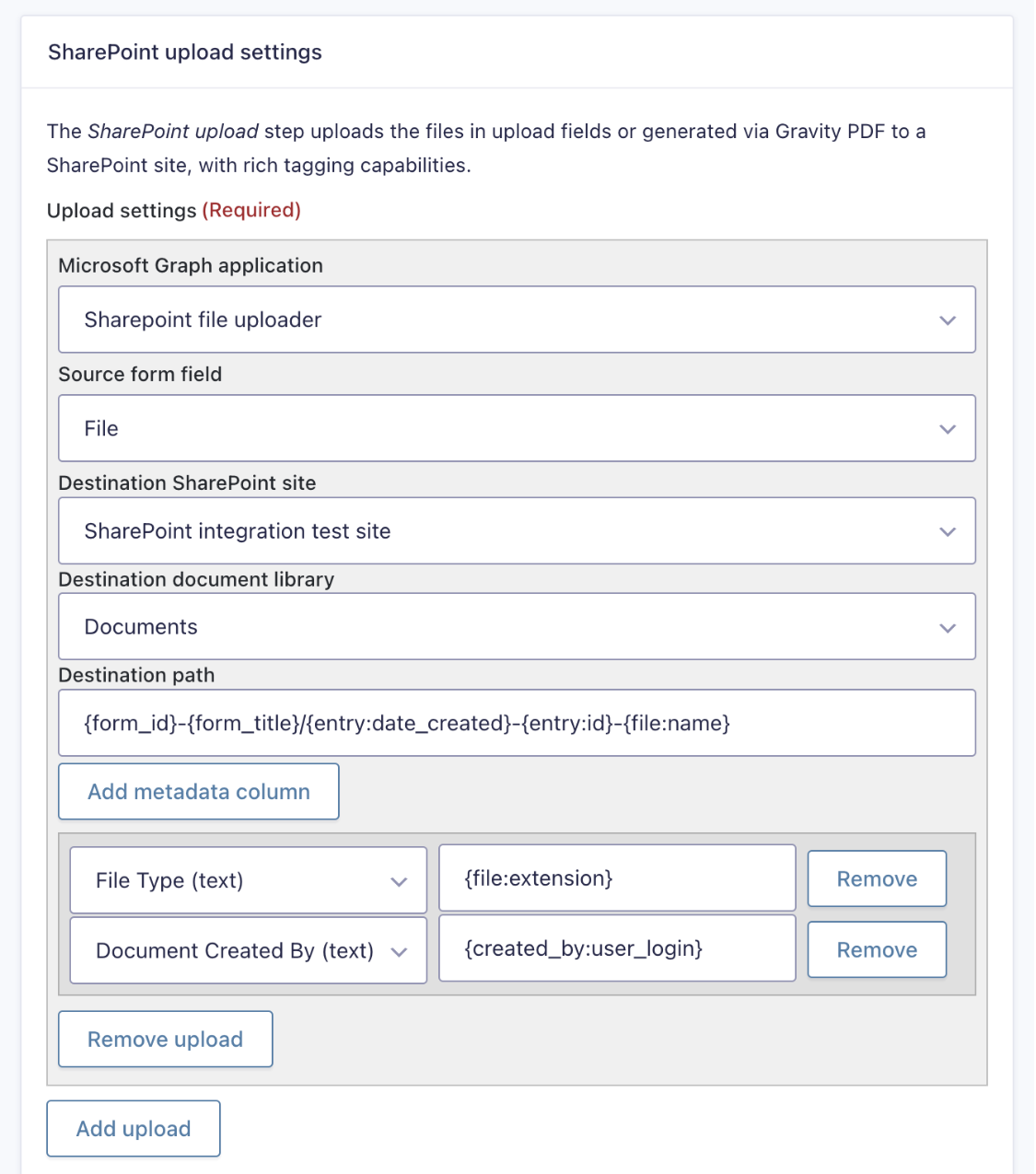
You can use a plugin to move files from Gravity Forms to Microsoft SharePoint automatically. All you form submissions will then go to the right SharePoint folder without you needing to interact or write code.
This process runs through a SharePoint action, which can also update lists or trigger workflows once files are uploaded. All uploaded documents keep their original file name, so it’s easy match with form entries or identify records inside SharePoint.
Tip: You can also send Gravity Forms entry data to a SharePoint list, giving your team an organized view of submissions alongside the uploaded files.
What Improvements Does SharePoint File Uploader Offer?
- Sends form files to Microsoft SharePoint automatically.
- Lets you add info like file name, submission details, or custom numbers.
- Uploads PDFs made by Gravity PDF.
- Easy to set up, no coding needed.
- You choose when files get uploaded.
- Helpful for teams that handle lots of forms.
- Works with the latest WordPress and Gravity Flow versions.
- Stores everything in Microsoft SharePoint storage, not your site.
Uploader Comparison
You might want to try some other options. Here is a basic comparison to help you pick one.
|
Option |
Security |
Setup |
Access |
Backup |
Specialty |
|
Local server |
Medium |
Easy |
WordPress only |
On your site |
Default Gravity Forms file upload location. Files stay on your server in wp-content/uploads/gravity_forms. No extra organisation needed. |
|
SharePoint File Uploader |
High |
Easy |
Team members |
Cloud |
Files go straight to a Microsoft SharePoint folder or linked SharePoint list. Can map form fields to metadata and upload PDFs automatically. |
|
Gravity Forms File Upload Pro |
Medium-High |
Medium |
WordPress + team |
Depends on the server |
Lets you upload multiple files, set folder rules or dynamic fields, and restrict file types. |
|
GDrive File Uploader |
High |
Medium |
Google Drive users |
Cloud |
Sends files straight to Google Drive. Supports folders, multi-file uploads, and fits Google Workspace workflows. |
You can also combine them.
Conclusion
By default, Gravity Forms uploads your files in /uploads/gravity_forms/, sorted by form and date. The Form Entries page will also let you manage everything from there, with the file names, you can easily get what you need.
That’s fine for most sites… until you want a bit more control or tighter security. You’ve got two options: tweak the folder with code, or skip the hassle and use a plugin that sends everything straight to Microsoft SharePoint.
Want the easy route? SharePoint File Uploader is not just the easiest, but also the safest possible option, combined with Gravity Flow to automate things smoothly.
Learn more about our WordPress Plugins, and SharePoint File Uploader here.