
How To Set Up And Improve Gravity Forms File Uploads
People send files all the time.
What if every file went where it should, instead of WordPress’ default storage? You can set up a Gravity Forms file upload field through the form editor to make that happen
Your team can open the folder and get what they need. Everything will be arranged correctly, HR forms will be stored in one location, and project files in another. All of that can be done with Gravity Flow and Gravity PDF. No need for scripts or extra tools. Every file will end up where it should.
Read on to learn how to add the files upload field – the plugin will do the rest. You have some options, like Zapier and Power Automate, and we’ll go with our own SharePoint File Uploader for reference.
How to Set Up a File Upload Field in Gravity Forms
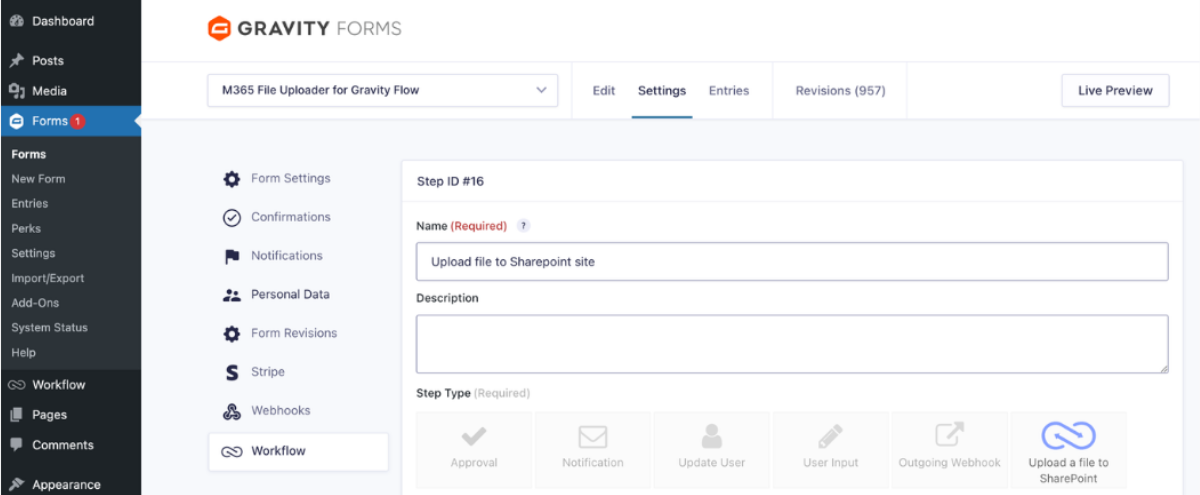
With the field, users can send you files directly. They can drop in docs, pics, or other bits of content. Here’s a simple walkthrough to add the file upload field:
Step 1: Add the File Upload Field
In the Gravity Forms editor, head over to Advanced Fields > File Upload. Drop it wherever it makes the most sense in your form. Give it a clear name so users know what goes there. Toss in a short note if you want; little hints help everyone.
Step 2: Set Allowed File Types and Size
- Allowed File Extensions: Pick only the file types you expect. Gravity Forms does a fine job of blocking problematic ones, but it’s best to be extra careful.
- Max File Size: Decide the biggest file you’ll accept. Large files can slow things down, so a limit keeps the form happy.
Clear rules will help users get it right on the first try.
Step 3: Allow Multiple File Uploads if Needed
If your form needs more than one file, allow multiple uploads. Once someone submits a file, this setting can’t be switched back. That’s important to take note of, more files will take up more space.
Step 4: Test the Form and View Submissions
Try it out yourself. Look at Entry Detail to see if files show up. Check file types. Check sizes. Check multiple uploads. Doing a little test run will keep the surprises at bay.
If you’d like to learn more about how fields generally work, you can look at the Gravity Forms’ Advanced Field docs for extra pointers.
Where Are Uploaded Files Stored by Default?
Your files will land here – the default uploads directory:
/wp-content/uploads/gravity_forms/
Custom Upload Paths and Cloud Storage
You can move uploads to another folder using gform_upload_path. You can even send them to a different server with gform_after_submission. Although your server still needs access to the files.
Common File Upload Issues and How to Fix Them
Don’t think every failed upload is from the user’s internet; many other factors can trip it up. The good news is that most fixes are quick and easy once you spot the cause. Here’s how to sort out a few common snags one by one, many of which you or your administrators can take care of with your Form settings.
PHP Upload Size Limits
PHP limit can stop users from sending big files.
- Edit php.ini and raise upload_max_filesize and post_max_size.
- Keep the Gravity Forms Maximum File Size within PHP limit.
Once that’s done, large files will be transferable again.
Unsupported File Types
If uploads fail fast, the file type might not be on the list.
- Look at the “Allowed File Extensions” in your File Upload field.
- Make sure WordPress isn’t blocking the file type
It’s that simple; sometimes adding the right file type is all you need to deal with the block.
Temporary File Storage Errors
If uploads stop before saving, your temp folder may need a quick check.
- Make sure the temp directory can be written to.
- Check disk space and folder rights.
- Restart PHP or clear temp files if needed.
Most upload issues fix fast once you know where to look. With a few checks, your form will take files again without issues.
How to Automatically Upload Gravity Forms Files to SharePoint
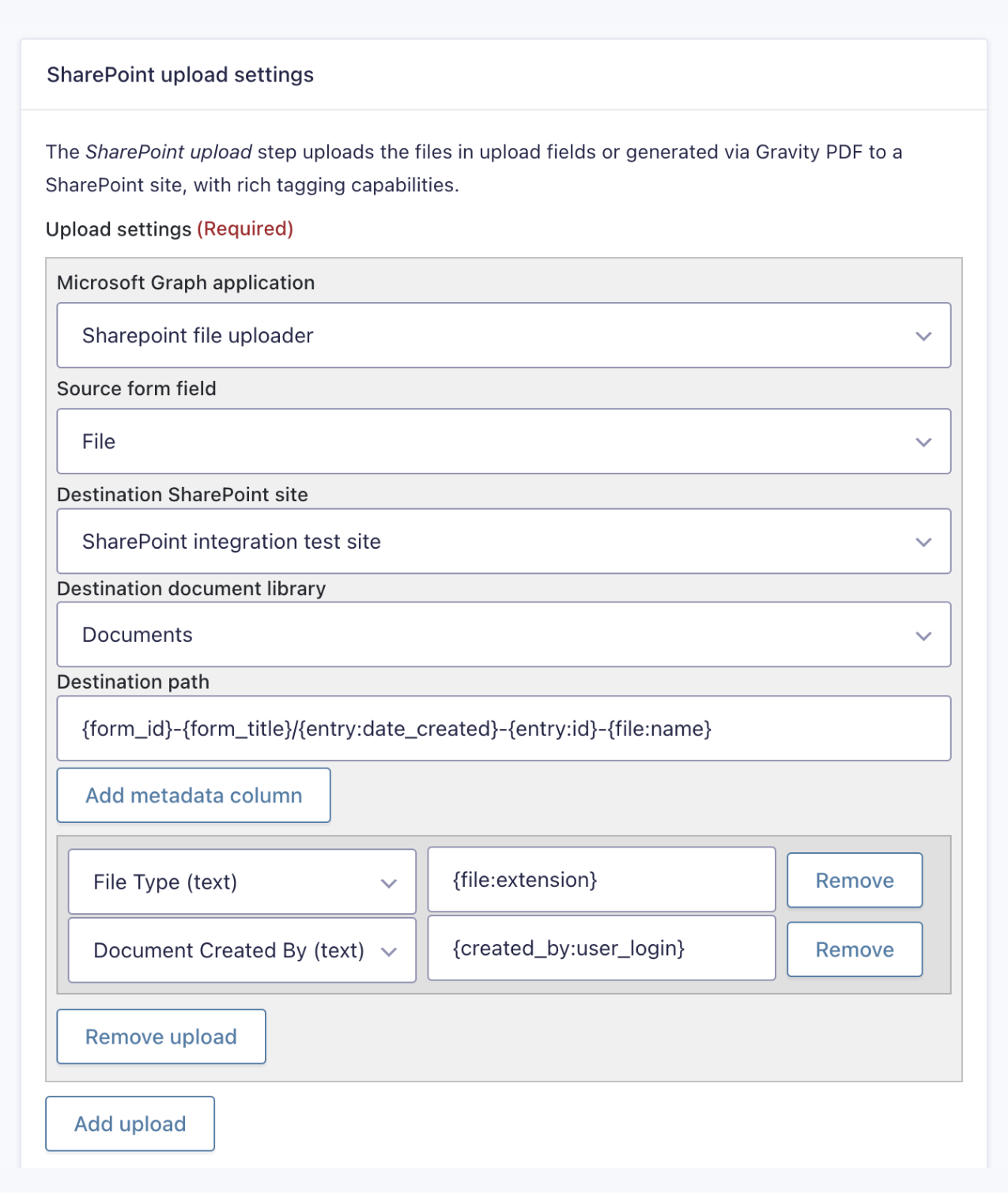
If you’re on Microsoft 365, you probably enjoy the convenience of one shared space, but even that can be limiting at times. Handling uploads only inside WordPress can start feeling heavy or awkward. But there’s something you can do about that.
With the SharePoint File Uploader for Gravity Flow, each Gravity Forms file upload moves straight to a SharePoint folder as soon as a form is sent. Even better, you get a notification when that happens. It takes no code, you don’t even have to wait or deal with clunky downloads.
Setup is easy, you just need to:
- Link your WordPress site to SharePoint with your Microsoft login.
- Match your Gravity Form fields to SharePoint info like file type or team name.
- Submit the form, and the file lands in your chosen folder right away.
That’s all. Your docs (such as job forms, signed papers, or project notes) will jump straight into the right spot where your team can find them fast.
Take a look at how simple this Workflow Overview is:
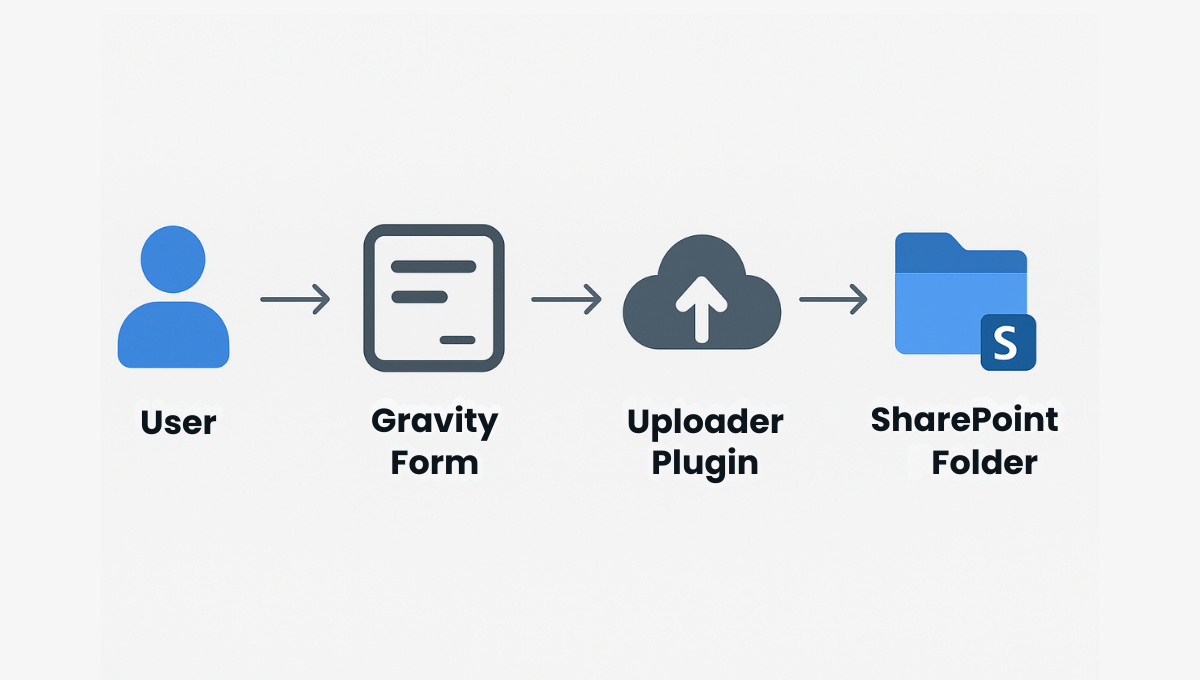
The process runs on its own, so your uploads stay neat, sorted, and easy to reach.
Benefits of Uploading Files to SharePoint
The process runs on its own, so your uploads stay neat, sorted, and easy to reach.
Centralised File Access
Every form file sits in one SharePoint place, and all team members can reach it if their account has permission.
Better Security & Control
Files stay in Microsoft’s secure system, reducing vulnerabilities, while honeypot fields prevent spam, so that you retain full control through your account rules.
Simple Team Sharing
Once a file hits SharePoint, it’s ready in Teams and OneDrive – and everyone will get a notification, so your group can chat and work on it together.
No Strain on WordPress
Because files don’t fill up your server, your site load will stay light, so users can enjoy responsive performance.
SharePoint is the only upload spot you need to keep your sensitive user data tidy, findable, and safe with a steady file flow. Dropbox and Google Drive are also good, but limited when it comes to automation.
Advanced Upload Enhancements You Can Add
Once your Gravity Forms file uploads are running smoothly, you can make them even handier Each tweak helps keep your uploads neat, smart, and easier to handle.
- File Upload Pro lets you drag and drop files, see progress bars, and handle multiple files without fuss.
- File Renamer gives uploaded files clear, consistent names automatically.
- Smart Uploads keeps files organised by following simple rules behind the scenes.
- Notification Attachments sends emails with the uploaded files attached, so nothing gets lost.
- ACL Feeds Extension acts on form submissions only when certain rules are met, keeping things tidy.
- ACL Field Comparison Extension shows or hides fields based on what’s in other fields for smarter forms.
If your team wants a setup that’s even stronger and safer, the SharePoint File Uploader is the next step. It takes regular uploads and turns them into a smooth, automated workflow everyone can rely on.
Final Thoughts: Make Gravity Forms suitable for larger teams
Gravity Forms, enhanced with Gravity Flow, makes it easy to get files from users, but getting it is just the start.
When files stack up, WordPress can get slow, and work feels stuck. With SharePoint File Uploader, each file goes straight to the right folders. You can watch files land safe while you take a break, and things stay calm and neat.
Each file is where it should be, and your work keeps moving, so you can do what comes next. Want to try connecting your Gravity Forms to SharePoint? You can try it out here.